


Guides · Playing together
Playing together
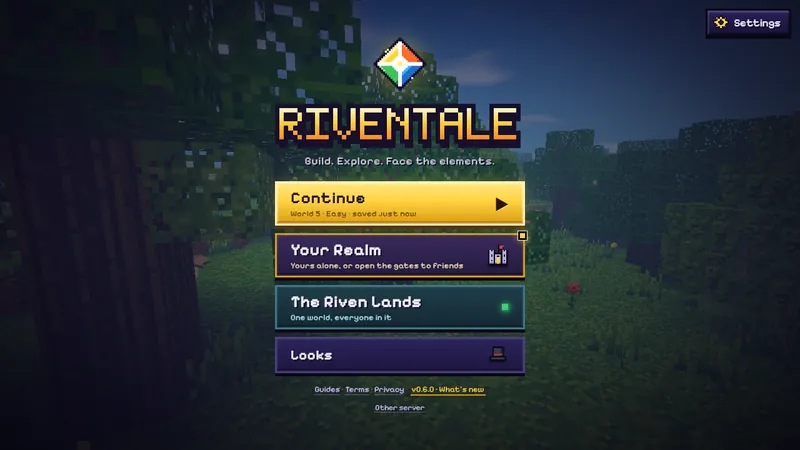
Every door under Worlds on the title menu can lead to other players, and all are free. The Riven Lands is one shared world in copies of up to 60 players each, always there. Kinholds holds your own worlds: each is yours alone until you invite friends, and one of them can live on our server as a private world that friends can enter while you are away. Players’ worlds lists the worlds players have opened to everyone.
Which one to pick
| The Riven Lands | Your world, with friends | Private world | |
|---|---|---|---|
| Who can join | Anyone | Only people with your link | Only people with the code or link |
| Players | Up to 60 in each copy | You and up to 8 friends | Up to 10 |
| Where it runs | Our game server | Your browser | Our game server |
| Needs you online | No | Yes: it closes when you stop | No |
| Where it is saved | Our server | Your browser, with your friends' characters | Our server; the owner can download it |
| Chat | Everyone in your copy | Only the players inside | Only the players inside |
The Riven Lands
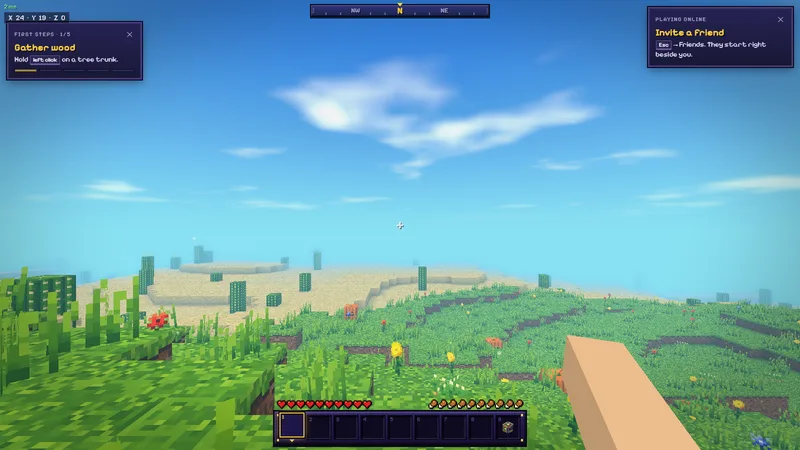
Press The Riven Lands, choose a player name and you are in. The button shows how many are playing now. On a server, a name belongs to whoever took it first; your browser keeps a hidden token that proves the name is yours, so play from the same browser to keep your character. A name nobody has used for 60 days is freed for others.
To bring a friend, open the pause menu and press Friends: Invite to this world is at the top, with a link to share or copy and a QR code for phones. You need no account for it. Anyone who opens the link joins the same world and starts right beside you.
Copies of the Riven Lands
When the Riven Lands fill, another copy opens: Riven Lands II, then III. Every copy is the same land with its own builds, chests and Shardborn, and holds up to 60 players. Your character lives in one copy at a time, your copy, and The Riven Lands takes you back to it; if it is full, you play in the nearest copy with room until it has some again. The room list under the button shows each copy and who is in it: pick another and your character moves there, bag and all, and that becomes your copy. Your builds stay in the copy you built them in.
- A friend's invite link, or Join in Friends, takes you to their copy.
- Your Homefires belong to the copy you set them down in. In the compass's list a home in another copy shows its numeral, and going there takes you to that copy.
- Your name, your friends, and any ban are the same in every copy.
Kinholds
Kinholds lists your worlds, up to five, saved in your browser, with New world to make another. Here you rename a world, download it as a file, or load a world file back in. Continue on the title menu goes straight back to the one you played last. Each world has an Invite switch beside it, and your private world, if you keep one, sits in the same list under On our server.
Inviting friends to your world
In the pause menu of a world you are playing, press Friends, then Invite to this world. You get a link to copy or share, and a QR code for phones. Up to eight friends open it in their browsers and play in your world with you, straight from browser to browser, so each browser sees the other's internet (IP) address. Their characters are saved in your world, so they keep their things next time. The Invite switch beside the world in Kinholds stays on: the world opens to friends each time you enter it, without asking. Stop inviting under the link, or the switch, makes the world yours alone again; then it needs no internet.
- While friends are in, the world keeps running when you open the pause menu.
- When you leave the world or press Stop inviting, they see "World closed". If your tab closes, they lose the world too.
- Some networks (often phone networks or strict routers) cannot connect straight to each other. The game then tries a relay; if that fails too, your friend sees why, with a button to private worlds instead.
A private world on our server
Kinholds > On our server > Create a world: pick a world (SMP among them), its rules, and Create world. Your worlds there sit in Kinholds with your other worlds, one tap in. A guest keeps one world on our server; sign in to keep three. You get a 16-character code like K7QD-…, and an invite link with the code built in; up to ten players can be in it at once (thirty in an SMP world), with or without you. Anyone with the code can join from Join with a code on the same screen. Codes forgive typing: any case, with or without dashes, and an O for a zero is fine.
- A world sleeps while nobody is in it and wakes, as it was, when someone comes back. SMP worlds and the worlds of signed-in players are kept for good. A guest's other world is freed after a week with nobody in it, and its owner can still download it for 90 days.
- The owner can Download a copy at any time from the invite window. The file loads as a world of your own (Kinholds > Load a world file).
- A code that reached the wrong hands: the owner presses New code in the invite window. The old code and its links stop working at once; players inside play on.
- The owner keeps the world: /kick <player> [reason] sends a guest out, /ban <player> keeps them out of this world for good (/unban and /bans too), and /time, /weather and /tp work there.
- When our server is busy, the screen says so: try again soon, or play a world of your own meanwhile.
Players’ worlds
Players’ worlds on the title menu lists the worlds their owners have opened to everyone. Playing now puts the worlds with players in them first, then the ones visited most this week; New shows worlds listed in the last three days that nobody is in yet. Each row has the world's name, its owner, its kind (Sky Islands, SMP, One Block...) and the players in it now out of its seats. Tap one and you are in, no code needed. A full world says so, with a world of your own one tap away.
- To list a world of yours on our server, sign in, then Players’ worlds > Your worlds > List (or List beside it under On our server). Give it a name and, if you like, a short description; both pass the same filter as chat. Unlist takes it off the list at once.
- Players who come from the list never see its code. Once you unlist it, the way in from the list is closed; your codes and invite links work as before.
- Report on a row flags the world to our moderators. Three reports from different signed-in players take it off the list until a moderator has looked at it. Nothing in the world is lost.
Friends
Sign in (email, Google or a passkey), open Friends (title menu, pause menu or F) and share your friend code, or the link and QR code that carry it, or type a friend's code under Add friend. You see which friends are online and in which world, join them in one tap, and invite them to yours: an invite reaches a friend wherever they are in the game.
Each friend's card says what they are doing: fighting a boss, building, mining deep, at home, fishing, or Away after five minutes without a key. It never says where they are in the world. Turn it off for yourself in Settings > Account > Show what I'm doing; only your friends ever see it.
- Since you left: a friend's Keepers beaten, Torn Pages found, Homefires raised and Dawn Seals earned while you were away. Salute one and they hear of it the next time they play.
- Meet here: with a friend in the same world, puts your spot on their compass for ten minutes.
- Join: when a friend comes online in a world open to you, the note has Join (Y). Online friends also show on the title menu, under Looks.
The Kinlight
Your invite links and your friend code bring newcomers in as yours. Once someone new plays ten minutes on our server (the Riven Lands or a private world) within 14 days, you both earn the Kinlight: two lights, gold and violet, that walk the road with you. It is a look only. It is never sold, and each player can bring up to five newcomers.
Share a moment
Press P on a computer, or the camera button on a phone’s toolbar, for a picture of what you see: no HUD and no hand, framed with the Riventale mark, with a link to the game. A computer saves it to your downloads and copies the link; a phone opens its share sheet.
- Other players’ names stay out of the picture unless you turn on Settings > HUD > Names in moments. No coordinates, world name or friend code is in it.
- At a big moment (a boss falling near you, a Lens Foundry vault opened, your first Homefire), the game offers a picture for a few seconds. Settings > HUD > Share offers turns that off.
Playing well together
Downed, not dead
In a multiplayer world, reaching zero health knocks you down instead of killing you outright. You crawl for up to 60 seconds, and a friend who holds Use (right click) on you for three seconds revives you. You can also give up and respawn.
Claims and trust
A Claim Stone (eight stone bricks around an iron ingot) protects the 33×33 columns around it, from the sky to the bottom of the world, so nobody else can build or break there. Each player can place three. Type /trust and a name to let a friend build on your land, /untrust to stop, and /claims to list yours. The area around the world spawn cannot be claimed.


Finding each other
- Teleport requests: a friend asks to come to you; press Y to accept or N to refuse (or /tpaccept, /tpdeny).
 Farglasses take you to a friend, to one of your homes, or to where you last died.
- Homes: a Homefire you set down is your home, up to four, and only where you may build. Your compass takes you back to any of them (/home too).
- Teams: /team with a colour nobody has yet starts a team; members bring others in with /team invite and a name. Teammates share claims, cannot hurt each other, and show their colour on name tags.
Pages, songs and achievements
Torn pages, Songstone songs and achievements belong to each player. A Songstone one player starts is heard by everyone nearby; see the Songstone.
Safety
The Riven Lands has text chat with everyone in your copy; a private world or a world of yours with friends in it has only the people you invited. Pick a name and write messages that are fine for everyone to read; we can remove a name or a player who spoils the game for others. What the game keeps when you play online is on the privacy page.
Next: Emberhold. All sections: the guides.